


Understanding Bitrates and What “HD” Really Means in IPTV
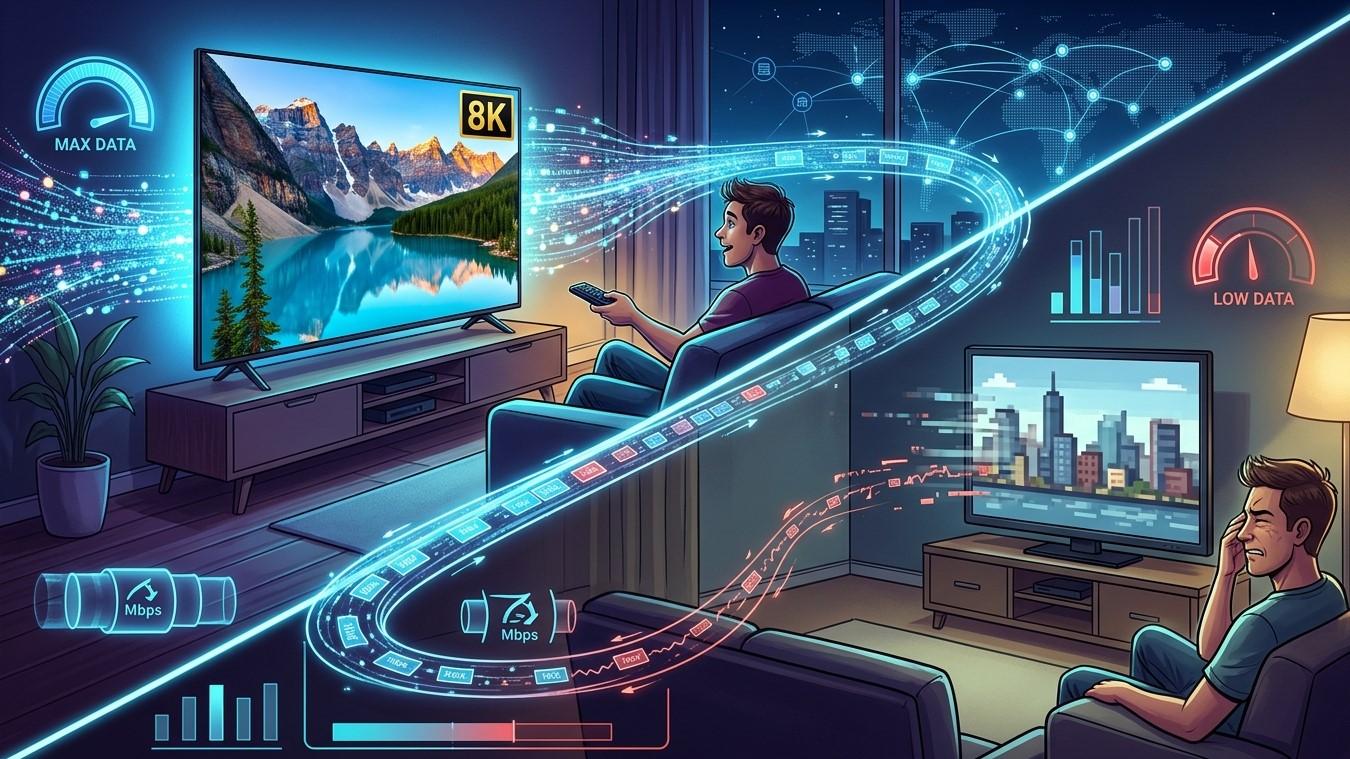
You switch to a channel labeled “HD,” and it looks soft, blocky, or full of smeared motion. Meanwhile, another “HD” channel looks crisp. Same label, very different picture. The reason is that “HD” describes only part of the story. The rest is bitrate, and understanding both helps you judge channels more fairly, choose the right settings, and set realistic expectations for your IPTV India service on your Indian IPTV Box.
Table of Contents
- Resolution vs Bitrate: Two Different Things
- What “HD” Actually Means
- What Bitrate Is and Why It Matters
- Why Two HD Channels Can Look Very Different
- Codecs: Getting More Quality from Less Data
- Frame Rate and Interlaced vs Progressive
- Why Sports Need More Bitrate
- Bitrate, Data Usage, and Your Internet Speed
- Adaptive Streaming
- How to Judge a Channel’s Real Quality
- FAQs
Resolution vs Bitrate: Two Different Things
Resolution is the number of pixels in the picture, such as 1280×720 or 1920×1080. More pixels means the picture can show more detail.
Bitrate is how much data is used each second to describe that picture, usually measured in kilobits or megabits per second (kbps or Mbps). More data per second means the picture can keep that detail.
Think of a large photo saved at very low quality. It has plenty of pixels, but it looks muddy because too much information was thrown away to make the file small. Video works the same way. A channel can have an HD resolution and still look poor if the bitrate is too low for the content.
What “HD” Actually Means
“HD” is a label for resolution, and it covers a few formats:
| Label | Resolution | Notes |
|---|---|---|
| SD | Around 480p or 576p | Standard definition |
| HD | 1280×720 (720p) | Often called “HD ready” |
| Full HD | 1920×1080 (1080p) | The most common “HD” format |
| 4K / UHD | 3840×2160 | Four times the pixels of 1080p |
Notice that “HD” doesn’t promise any particular bitrate, codec, or frame rate. Channel names that include “HD” are describing the stream’s resolution at best, and sometimes just the marketing.
Some things can make the label misleading:
- Upscaled SD. A standard-definition source can be enlarged to an HD frame. It will occupy 1080 lines but won’t contain real HD detail
- Heavy compression. The resolution is HD, but the bitrate is so low that fine detail and fast motion fall apart
- Different HD formats. 720p and 1080p are both “HD,” but they aren’t the same
A label tells you what the stream is called, not how good it looks.
What Bitrate Is and Why It Matters
A video stream is compressed so it can travel over the internet. The encoder decides how much detail to keep and how much to discard to meet a target bitrate:
- Higher bitrate: More detail preserved, smoother gradients, cleaner motion, fewer blocky artifacts
- Lower bitrate: Smaller data stream, but more blocking, banding, blur, and shimmering in busy scenes
Typical symptoms of too little bitrate include:
- Blocky squares in dark areas or during quick scene changes
- Smooth color areas (like sky) breaking into visible bands
- Fine textures, such as grass or fabric, turning into mush
- Motion looking smeared or jerky
The amount of bitrate “needed” isn’t fixed. It depends on the codec, the content, the frame rate, and the quality the provider decides is acceptable.
Why Two HD Channels Can Look Very Different
When two channels share a label but not a look, one or more of these is usually responsible:
- Different bitrates. The provider (or the source broadcaster) may allocate more data to some channels than others
- Different source quality. If the original feed is already compressed or low quality, no later step can restore it
- Different encoding. Channels may be processed by different encoders with different settings
- Re-encoding. Each time a stream is compressed again, quality can drop
- Different codecs. Newer codecs get more quality from the same data
- Different content. A talking head in a studio is easy to compress. Fast cricket action and crowds are hard
- Different frame rates and scan types. More on that below
This is why a channel can look excellent in one scene and rough in another, even though nothing about the connection changed.
Codecs: Getting More Quality from Less Data
A codec is the method used to compress and decompress video. Better codecs preserve more quality at the same bitrate, or hold the same quality at a lower one.
- MPEG-2: An older codec, still found in legacy broadcast feeds. It needs relatively high bitrates for decent quality
- H.264 (AVC): Very widely used for streaming and supported by almost every device
- H.265 (HEVC): Often delivers similar quality at a substantially lower bitrate than H.264, with some estimates around half, though results vary by content and encoder
- AV1: A newer, efficient codec with growing support, though it may need newer hardware to decode smoothly
Your device must be able to decode the codec the stream uses. An older box may struggle with HEVC or AV1, which can cause stutter or playback failure. That’s one more reason a capable Indian IPTV Box matters, and why keeping its firmware updated helps.
Frame Rate and Interlaced vs Progressive
Two more details influence how “HD” looks:
- Frame rate is how many pictures appear per second, such as 25, 30, 50, or 60. Higher frame rates look smoother in motion but need more data
- Interlaced (1080i) formats draw alternate lines in each pass and have long been used by broadcasters. Progressive (1080p, 720p) draws every line in each frame
- Deinterlacing is the process of converting interlaced video for modern displays. Done poorly, it can cause flicker, jagged edges, or combing on moving objects
Some broadcast feeds originate as 1080i, and your TV or box converts them. If a channel shows jagged edges on movement, that conversion could be part of the cause. Many TVs and boxes let you choose how video is processed, but the options differ by model.
Why Sports Need More Bitrate
Live sports are among the hardest content to compress well:
- Fast, constant motion from the ball, players, and camera pans
- Fine detail and busy backgrounds such as crowds, grass, and pitch textures
- Frequent camera cuts and graphics overlays
- Live encoding. The system can’t look ahead the way it can with a pre-recorded show
A bitrate that looks fine on a studio news broadcast may fall apart during a cricket match. If sports channels look worse than other channels, limited bitrate is a common reason, and it’s one reason live matches reveal weaknesses that regular programs hide.
Bitrate, Data Usage, and Your Internet Speed
Bitrate connects directly to how fast your connection needs to be and how much data you use. You can work out data usage like this:
Data per hour (GB) ≈ bitrate (Mbps) × 0.45
| Example Bitrate | Approximate Data Use |
|---|---|
| 3 Mbps | About 1.35 GB per hour |
| 5 Mbps | About 2.25 GB per hour |
| 8 Mbps | About 3.6 GB per hour |
| 15 Mbps | About 6.75 GB per hour |
| 25 Mbps | About 11 GB per hour |
These are illustrations, not promises, since actual bitrates vary by channel and provider.
Your internet speed needs headroom above the stream’s bitrate:
- A stream averaging 6 Mbps doesn’t need exactly 6 Mbps. It needs enough speed to handle peaks, plus overhead
- Other devices on your network use bandwidth too
- Wi-Fi performance is often below the plan’s advertised speed
That’s why the recommendation of roughly 10 to 15 Mbps for an HD stream is a comfortable cushion rather than the bitrate itself. If your connection can’t sustain the stream’s bitrate, you’ll see buffering or a drop in quality.
Adaptive Streaming
Many streaming systems prepare the same content at several bitrates and switch between them as your connection changes. This is called adaptive bitrate streaming:
- When your connection is strong, you get a higher-quality version
- When it weakens, the stream shifts to a lower one to avoid buffering
- You may notice the picture suddenly soften, then sharpen again
Not every IPTV service uses adaptive streaming for every channel. Some deliver a single fixed stream, in which case a weak connection leads to buffering rather than a quality drop. Which approach you get depends on the provider and the app. If your app lets you choose a quality setting, it may be capping which version it requests.
How to Judge a Channel’s Real Quality
Instead of trusting the label, try this:
- Check for stream information. Some apps and players show resolution, codec, and bitrate in an info overlay or playback menu. Availability varies by app
- Watch a scene with fine detail and motion, such as sports or a busy street. Weak bitrate shows up there first
- Look at dark scenes and smooth gradients. Blocking and banding show quickly
- Compare channels at the same time of day on the same device and connection, to rule out network differences
- Test on a wired connection. If it improves, your Wi-Fi was part of the problem
- Check your app’s quality settings, in case it’s limiting the stream
- Try another device. If one device handles the stream badly, decoding or processing may be the cause
- Remember your TV’s settings. Sharpening, noise reduction, and motion smoothing can make good video look worse
- Keep expectations realistic. An older or SD-origin program won’t look like a new HD production
If one channel is consistently poor while others look good, tell your provider the channel name and what you see. That’s more useful to them than “the picture is bad.”
FAQs
1. Is 1080p always better than 720p?
Not always. A 1080p stream at a low bitrate can look worse than a 720p stream with a healthy bitrate. Resolution sets the potential detail, while bitrate and encoding decide how much of it you actually see.
2. Why does my “HD” channel look blocky?
The most common reasons are a low bitrate, a heavily compressed or low-quality source, or fast-moving content that’s hard to compress. Your connection can also trigger a lower-quality stream if the service uses adaptive streaming.
3. Does a higher bitrate always mean a better picture?
Generally more bitrate helps, but with diminishing returns, and codec efficiency matters. A good HEVC stream at a lower bitrate can match an older codec at a higher one. A high bitrate can’t fix a poor source.
4. Does my Indian IPTV Box affect picture quality?
It can. The box has to decode the codec and handle the frame rate, and an underpowered or outdated device may stutter or fall back to lower quality. Display settings also matter.
5. How much internet speed do I need for HD IPTV?
Roughly 10 to 15 Mbps per HD stream is a common recommendation that leaves headroom for overhead and other devices. The exact need depends on the bitrate of the channels you watch.
See More Than a Label
“HD” is a starting point, not a guarantee. Resolution, bitrate, codec, and content all shape what you see. Pair a dependable IPTV India provider with a capable Indian IPTV Box and a stable connection, and you’ll get the best picture your channels can deliver. Explore our IPTV plans today and enjoy sharper, smoother viewing.
 English
 Arabic
 French
 Spanish
 Portuguese
 Deutsch
 Turkish
 Dutch
Dutch
 Italiano
 Russian
 Romaian
 Portuguese (Brazil)
 Greek
Greek