


How to Fix a Smartphone That Won’t Recognize a SIM Card After an Update
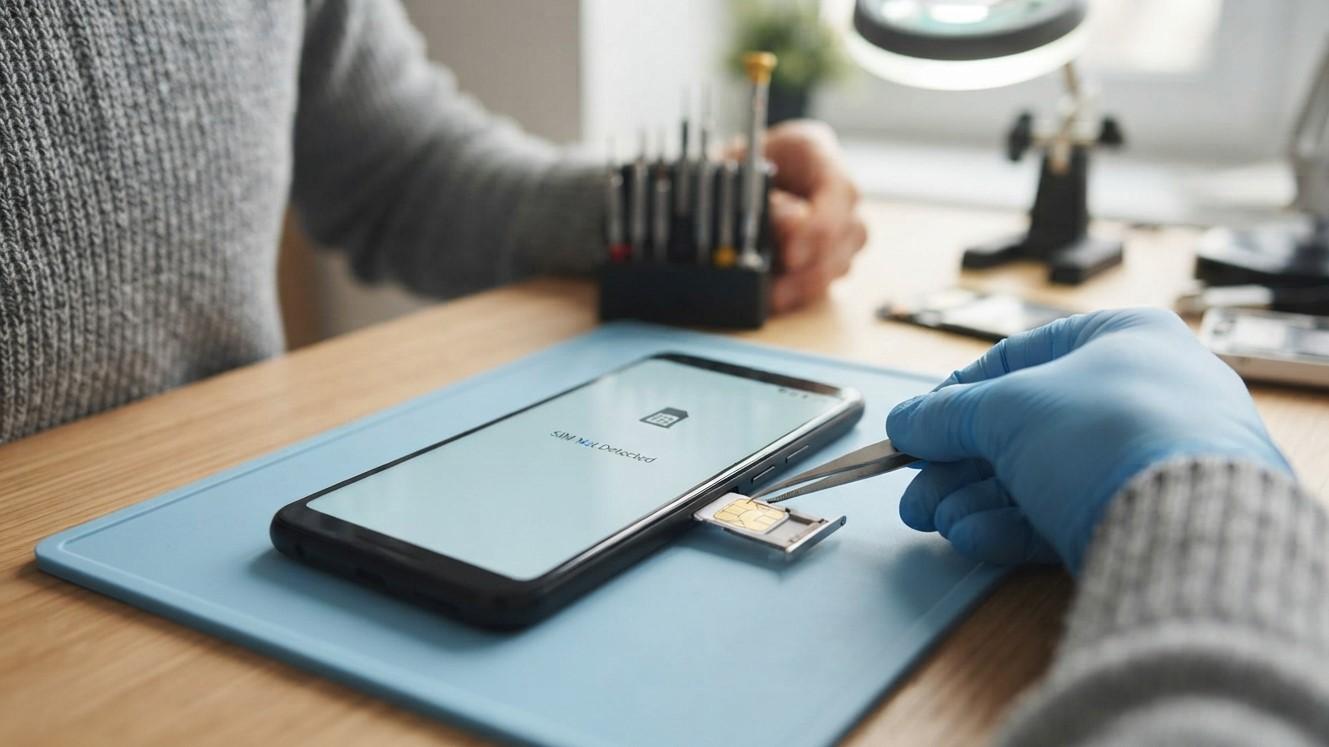
Table of Contents
-
Why Your Phone May Not Recognize a SIM Card
-
How to Fix the Problem
-
When to Seek Professional Repair
-
Frequently Asked Questions
-
Conclusion and CTA
Introduction
Has your smartphone stopped recognizing your SIM card after a software update? You may see messages such as “No SIM,” “SIM not detected,” or “Emergency calls only.” This can happen because of software glitches, incorrect network settings, or SIM card problems. Mobile Device Techs helps users explore solutions through mobile device repair Douglasville and phone repair Douglasville services.
1. Why Your Phone May Not Recognize a SIM Card
A software update can occasionally affect network settings or cause temporary compatibility issues. However, the update may not be the only cause. A loose or damaged SIM card, a faulty SIM tray, carrier restrictions, or a problem with the phone’s SIM reader can also prevent detection.
2. How to Fix the Problem
Restart Your Smartphone
Start with a simple restart. It can refresh the operating system and reconnect the phone to the cellular network. After restarting, wait a few moments to see whether the SIM card is detected.
Turn Airplane Mode On and Off
Enable Airplane Mode for approximately 30 seconds, then turn it off. This forces the phone to refresh its wireless connections and may restore cellular service.
Remove and Reinsert the SIM Card
Turn off your phone before removing the SIM card, if your device instructions recommend doing so. Carefully remove the SIM tray, check that the card is correctly positioned, and reinsert it securely. Never force the tray into the phone.
If the SIM card or tray appears damaged, avoid attempting to repair it yourself.
Check for Another Software Update
The manufacturer may release a follow-up update to fix bugs. Connect to Wi-Fi and check your phone’s software settings for available updates. Install updates from official sources and keep your phone sufficiently charged.
Reset Network Settings
If the problem continues, try resetting network settings. This can resolve incorrect cellular configurations, but it may erase saved Wi-Fi networks, Bluetooth pairings, and other network preferences. The exact steps vary by device.
Test the SIM Card in Another Phone
If possible, insert your SIM card into a compatible, unlocked phone. You can also test a known-working compatible SIM in your device.
-
If your SIM fails in another phone, contact your carrier.
-
If another SIM works in your phone, your original SIM may need replacement.
-
If no compatible SIM works, your phone may have a software or hardware issue.
Contact Your Mobile Carrier
Ask your carrier to check whether your account is active, the SIM is provisioned correctly, and there are no network outages or restrictions. If your device uses an eSIM, confirm that its profile remains active and correctly configured.
3. When to Seek Professional Repair
If your phone still displays “No SIM” after troubleshooting, the SIM reader, tray, or internal components may need inspection. Seek professional assistance if the device was dropped, exposed to liquid, or began having other hardware problems after the update. Back up important data before major troubleshooting steps.
4. Frequently Asked Questions
Why did my phone stop recognizing my SIM after an update?
A software bug or changed network configuration may be responsible, but a damaged SIM or hardware issue is also possible.
Will resetting my phone fix the SIM problem?
It might help with some software issues, but try restarting and resetting network settings first. A factory reset erases personal data, so back up your phone before considering it.
Do I need a new SIM card?
You may need one if the card fails in another compatible phone. Your carrier can test it and arrange a replacement if necessary.
Can a repair shop fix a SIM card detection problem?
A repair professional can inspect the SIM tray, reader, and related hardware if basic troubleshooting does not work.
5. Conclusion and CTA
A smartphone that won’t recognize a SIM card after an update may need a restart, network reset, SIM replacement, or professional diagnosis. Start with simple troubleshooting before attempting more drastic steps. Mobile Device Techs can help you explore mobile device repair Douglasville and phone repair Douglasville options if the issue persists.
Still seeing “No SIM” on your screen? Contact Mobile Device Techs to discuss your device problem and possible repair solutions.
 Portuguese (Brazil)
 English
 Arabic
 French
 Spanish
 Portuguese
 Deutsch
 Turkish
 Dutch
Dutch
 Italiano
 Russian
 Romaian
 Greek
Greek